AB-Arts Studio : éditeur de nœuds, documentation intégrée, nouvelles sessions
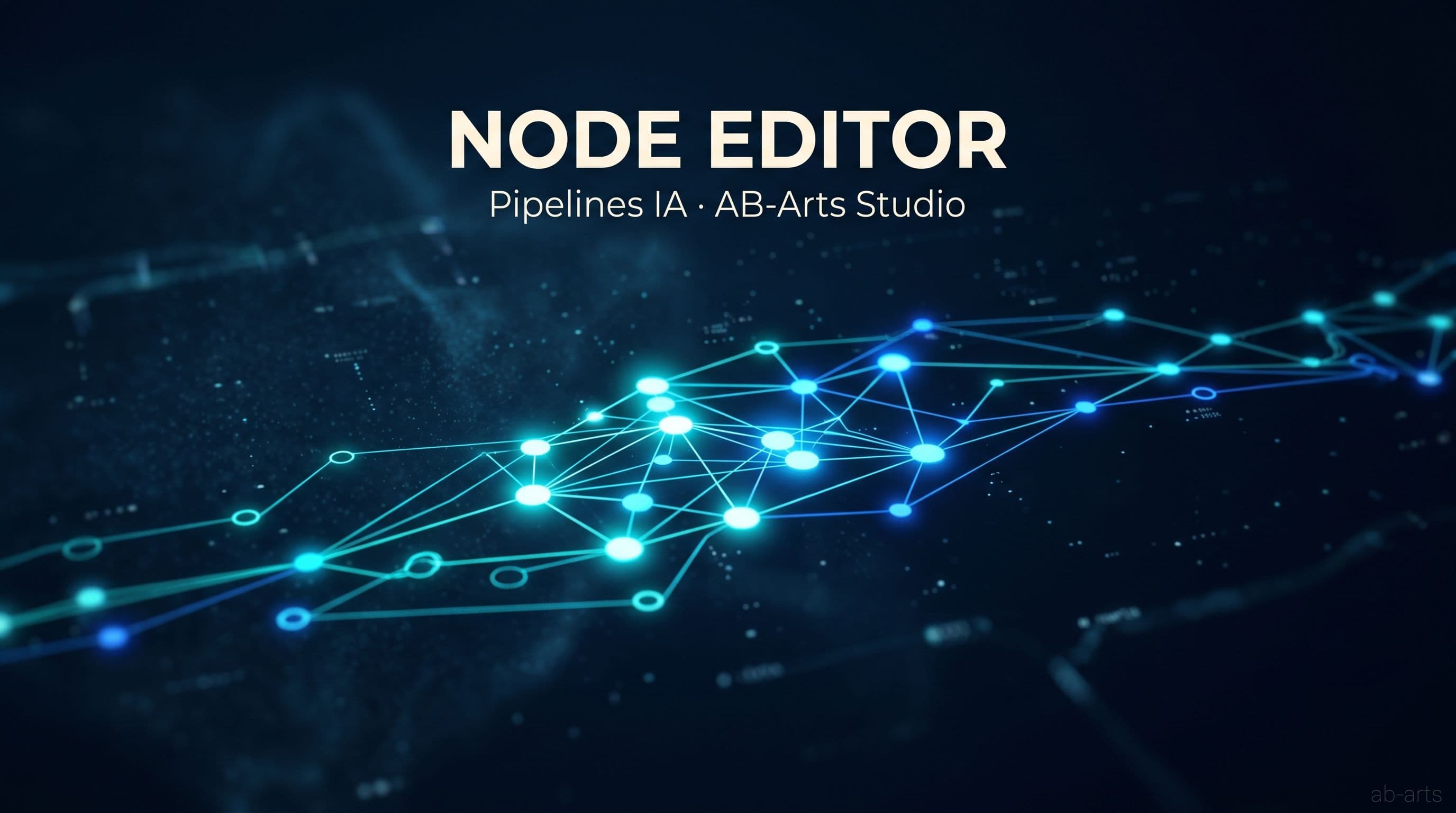
AB-Arts Studio franchit une étape : la création avec l'IA passe d'une suite d'opérations isolées à un véritable système. Cette mise à jour introduit quatre nouveautés majeures, dont l'éditeur de nœuds, un constructeur de pipelines visuels qui change la manière de travailler avec l'IA générative.
Jusqu'ici, créer avec l'IA voulait dire enchaîner les étapes une à une : générer une image dans une session, l'animer dans une autre, l'agrandir ailleurs encore. Chaque action isolée, chaque modèle séparé. Désormais, tout cela se conçoit sur une seule et même toile.
L'éditeur de nœuds : construire visuellement des flux IA
L'éditeur de nœuds est un constructeur de pipelines sur toile. Chaque nœud est un modèle IA, chaque connexion un flux de données, chaque exécution une séquence orchestrée qui se déroule automatiquement, du premier prompt au rendu final.
Vous connectez les nœuds en faisant glisser les poignées entre eux. Vous pouvez router la sortie d'un modèle d'image directement dans un modèle vidéo, enchaîner plusieurs prompts vers une seule génération, ou brancher un upscaler à la fin du pipeline. Le système valide les connexions en temps réel et anime chaque liaison à mesure que les données la traversent.
Sept types de nœuds, des combinaisons infinies
| Nœud | Type | Ce qu'il fait |
|---|---|---|
| Prompt | Entrée | Texte libre qui alimente les nœuds de modèle |
| Image Input | Entrée | Image de la galerie ou import depuis votre disque |
| Video Input | Entrée | Vidéo de la bibliothèque comme source |
| Audio Input | Entrée | Audio pour modèles de synchro labiale ou de voix |
| Model | Traitement | N'importe quel modèle IA, paramètres complets, estimation de coût en direct |
| Preview | Sortie | Affichage image, vidéo ou audio avec téléchargement |
| Note | Utilitaire | Annotation autocollante en 5 couleurs, juste pour vous |
Sous le capot : du sérieux
Les connexions sont typées : impossible d'envoyer une sortie vidéo dans une entrée qui n'attend que du texte. Le système refuse poliment et vous indique pourquoi.
Avant chaque exécution, un estimateur de coût en tokens s'affiche en direct, calculé dynamiquement à mesure que vous ajoutez, retirez ou configurez des nœuds. Aucune mauvaise surprise au moment de lancer.
Vous pouvez enregistrer un pipeline comme preset nommé. Les presets capturent l'état complet de la toile (nœuds, liaisons, position de la fenêtre, valeurs de paramètres) et la restituent exactement au chargement. Ils peuvent être personnels, partagés au sein d'une équipe, ou publiés auprès de la communauté.
💡 Astuce pour démarrer. Avant de construire depuis zéro, parcourez la bibliothèque de presets. Des pipelines préconçus existent pour les workflows courants : image-vers-vidéo, concept-vers-texture, upscale-puis-animer.
À qui s'adresse l'éditeur de nœuds
Le Node Editor débloque des flux de travail qui n'étaient simplement pas possibles auparavant au sein d'une seule session :
- Photographes : pipeline image → amélioration → animation, enregistré en preset pour chaque nouvelle séance.
- Producteurs vidéo : prompt de script → génération de voix → modèle vidéo en un seul workflow exécutable.
- Développeurs de jeux : concept art → extraction de texture → modèle de texture en tuile, sur une seule toile.
- Équipes marketing : pipelines de contenu cohérents avec la marque, exécutés en un clic par les membres non techniques de l'équipe via les presets enregistrés.
Trois autres nouveautés à connaître
L'éditeur de nœuds est la pièce maîtresse, mais cette mise à jour apporte trois compléments qui comptent.
Documentation intégrée à l'app. Plus besoin de quitter la session pour aller chercher comment marche un paramètre. Le manuel complet est désormais accessible en un clic depuis n'importe quel point de l'interface. Si vous êtes en pleine session et que vous voulez un rappel sur le calcul des tokens ou sur l'effet d'un seed, la réponse est à portée de regard.
Parcours d'accueil pour les nouveaux comptes. Chaque nouveau compte AB-Arts Studio bénéficie désormais d'une expérience guidée : création de la première session, compréhension du système de tokens, choix du bon modèle selon le cas d'usage, mise en place d'un workspace pour les équipes. Objectif explicite : passer de l'inscription à la première génération réussie en moins de trois minutes.
Mode Blog Writer. Un nouveau type de session dédié à la rédaction de contenus éditoriaux longs (articles, billets, posts longs). L'IA garde la structure, le ton et les sources tout au long de la rédaction, et la sortie sortie est prête pour un export direct.
Le sens de cette mise à jour
Ces quatre nouveautés partagent un fil conducteur : réduire la friction entre vous et votre production créative. L'éditeur de nœuds supprime la friction entre les outils. La documentation intégrée supprime la friction du changement de contexte. L'onboarding supprime la friction du démarrage. Et Blog Writer supprime la friction entre génération et publication.
AB-Arts Studio a toujours été conçu pour apporter des capacités IA sérieuses à des créateurs sérieux. Cette mise à jour fait avancer cette vision d'un cran.
→ Prêt à construire votre premier pipeline ? Ouvrez ab-arts.studio, créez une session Node Editor, et lancez. Votre premier preset peut être prêt en moins de dix minutes.
Pour les équipes qui veulent un accompagnement structuré, notre masterclass Claude couvre l'orchestration d'agents et la construction de pipelines IA en entreprise, et notre offre Optimisation des workflows intervient directement dans vos pipelines existants pour y intégrer l'IA proprement.
Passez de la lecture à la production.
Ce qu'on teste ici, on l'exécute pour vous. AB-Arts conçoit, forme et accompagne : trois manières de travailler ensemble, une seule équipe sous un même toit.
Web, motion, vidéo, image et campagnes. Du concept au master, une production complète sous un seul toit.
AB-Academy forme vos équipes à l'IA, aux workflows et aux outils créatifs. Sur site ou à distance.
Audit, conseil, automatisation. On débroussaille votre environnement digital, et on développe ce qui manque.
Articles liés
← Toutes les actualités
Refaire une pièce cassée en 3D avec Claude et FreeCAD
Une pièce plastique cassée et introuvable, refaite en impression 3D grâce à Claude et FreeCAD : photos, cotes, modèle paramétrique et 1,71 € de PLA.
Anthropic suspend Claude Fable 5 et Mythos 5 dans le monde
Sur ordre de Washington, Anthropic suspend mondialement Claude Fable 5 et Mythos 5, au nom de la sécurité nationale et d'un jailbreak signalé. On décrypte.
Claude Fable 5 et Mythos 5 : Anthropic sort deux modèles
Anthropic publie Claude Fable 5 et Claude Mythos 5, deux modèles qui battent GPT 5.5 et Gemini 3.1 Pro en code agentique. Tour d'horizon accessible.